Features
Multiple features and even apps' worth of software, one household plan.
A reading suite and a kitchen platform in the same app, on your own hardware, with your files in folders you control.
Read
One reader for your DRM-free books.
EPUB, PDF, plain text, Markdown, CSV tables, CBZ comics and your audiobooks open on the device itself; MOBI and AZW, DjVu, and CBR and CBT comics open through a Biblos hub or the desktop app, which does the converting; the Calibre formats (AZW3, FB2, CHM) open in the desktop app for macOS and Windows; and OGG audiobooks play wherever the app can play them itself (the Windows app, Chrome, Edge, Firefox) and, elsewhere, through a NAS hub, which converts them. Each opens with the same tools: bookmarks, highlights, search, themes and your place kept. Biblos opens DRM-free files — the ones you're free to open — and does not remove copy protection.
What opens where. On the device: EPUB · PDF · TXT · Markdown · CSV · CBZ comics · audiobooks (MP3, M4A, M4B, AAC, FLAC). With a hub or the desktop app: MOBI · AZW · DjVu · CBR and CBT comics · OGG audio · AZW3 · FB2 · CHM — with a Biblos hub or the desktop app, which does the converting: MOBI and AZW through Biblos's own converter on a computer or NAS (a phone or tablet on its own cannot open them); AZW3, FB2 and CHM through Calibre, which the desktop app for macOS and Windows downloads from calibre-ebook.com only when you ask (not available on the Synology NAS package); OGG audio plays where the app can play it itself (the Windows app, Chrome, Edge, Firefox) and otherwise through a NAS hub, which converts it. Not supported: LIT · IBA · CB7 · KFX.
Page turns that feel like paper
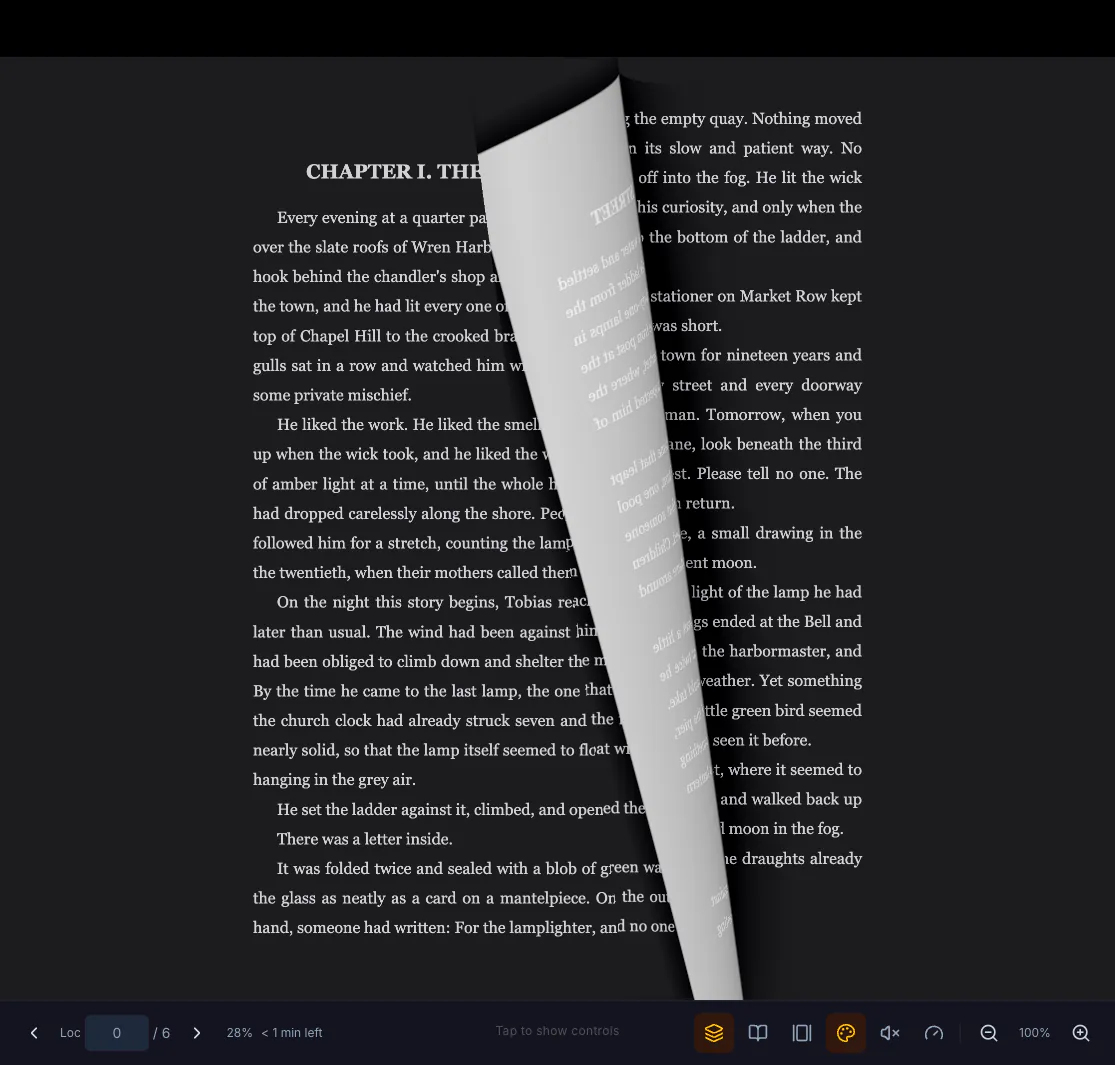
A finger-tracked page curl that keeps your reading theme, a two-page spread or a single page — and PDFs can also scroll, top to bottom. On a computer, a click beside the page turns it too.
Four reading themes
Light, sepia, night and a green-on-black terminal theme.
Scanned books with real text
Scans that come with recognized text — DjVu books and OCR'd PDFs — keep that text invisibly on the page, so you can select and copy from a photographed page in the web and desktop apps (on iPhone and iPad, an OCR'd PDF in scroll view). Both can be searched.
Comics and graphic novels
CBZ comics read on the device with the same shelves, progress and collections as the rest of your library, instead of a separate app. CBR and CBT archives open through a hub or the desktop app, which unpacks them.
Highlighting that doesn't misfire
The highlighter only marks when you arm it, so in the web and desktop apps ordinary text selection stays copy. Bookmarks and highlights are listed in the reader's side panel — a sheet on iPhone and iPad.
Speed reading, three ways
Word-at-a-time from 100 to 800 words a minute, a sweeping guided highlight, or a rapid page-by-page flip-through to preview a chapter before you read it.
Listen
An audiobook player, not an afterthought.
Same rule as the reader: DRM-free audiobook files you already own — MP3, M4A, M4B, AAC and FLAC on the device; OGG where the app can play it (the Windows app, Chrome, Edge, Firefox) and, elsewhere, through a NAS hub, which converts it.
Built for long listens
Multi-part audiobooks with auto-advance, 0.75× to 2× speed, a sleep timer, skip back and forward — and on iPhone and iPad, controls on the lock screen and in Control Center.
Keeps playing when the signal doesn't
On iPhone and iPad, each part of an audiobook is downloaded whole before it plays and kept on the device, so a tunnel or a dead zone doesn't stop the chapter. (The system may clear that copy when it needs the space.)
Read-aloud for anything else
Most books can be read aloud, depending on their format, with the voices your device or browser already has, with no per-minute charge. On iPhone and iPad they are Apple's voices, speaking on the device. In a web browser a voice can be the browser maker's online one — Chrome's Google voices are — and then the text being read goes to that service.
Flashcards from an audiobook
Pick up to 10 minutes of an audiobook and Biblos listens to it, then writes flashcards or a quiz the way it does from a book. Each card keeps the moment it came from, and in the web and desktop apps it plays that moment back. It needs a library or the desktop app, an AI provider that can listen (Groq or Gemini, with your own key) and Plus or Family. On an iPhone or iPad with Apple Intelligence (iOS 26), it can listen and write the cards on the device itself.
Study
Study cards that know which book they came from.
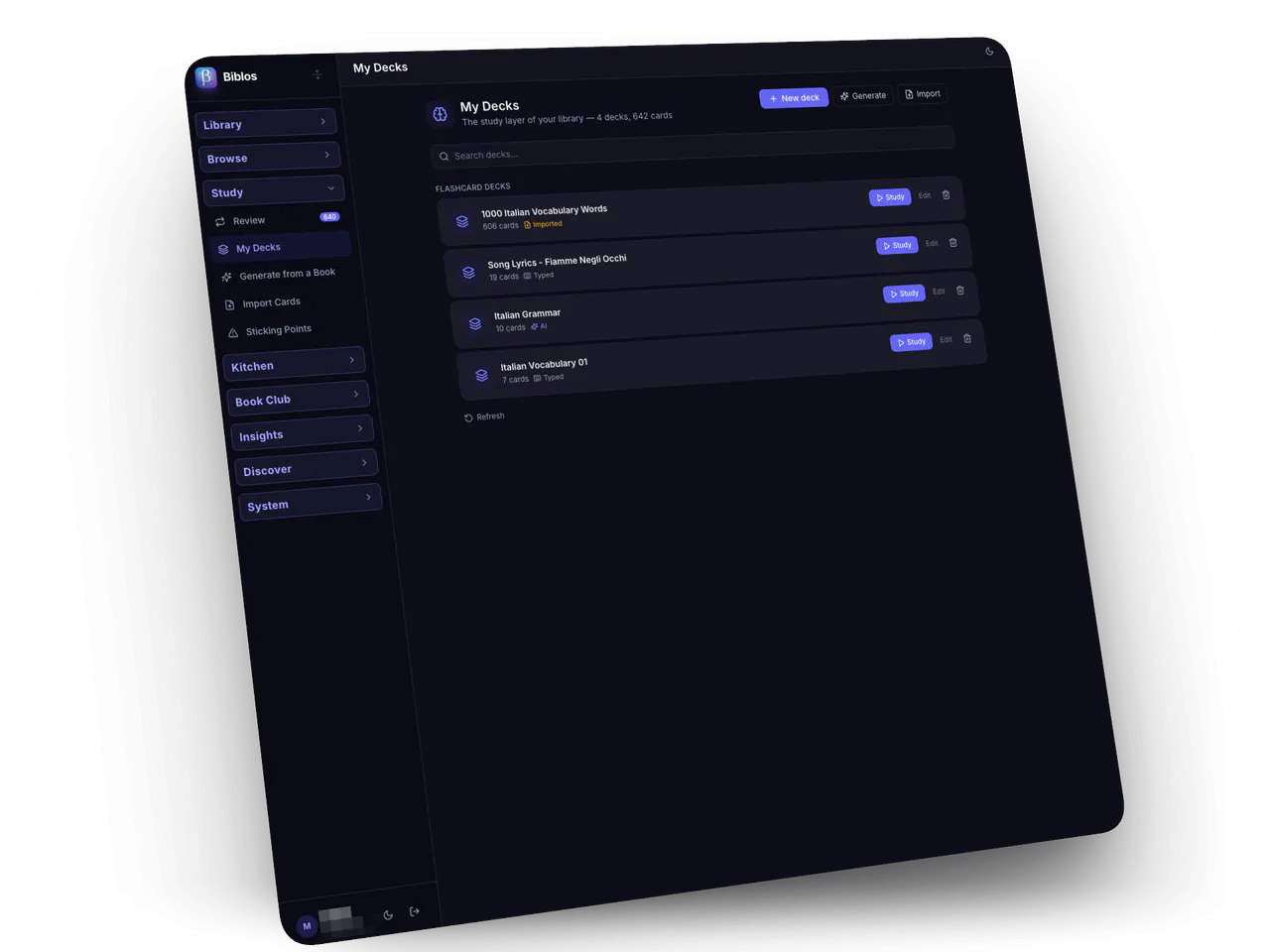
Most flashcard apps start with an empty box. Biblos starts with your library, so a study card made from a book can show its source.
Highlight, then study card
Turn your highlights into study cards without leaving the book — in ebooks, PDFs and scanned books, in the desktop and web apps and on iPhone and iPad.
Jump back to the passage
A study card made from a highlight remembers its chapter or page, and a card from an audiobook remembers its moment. In the web and desktop apps, one tap opens the book at that place or plays that moment.
The scheduler learners trust
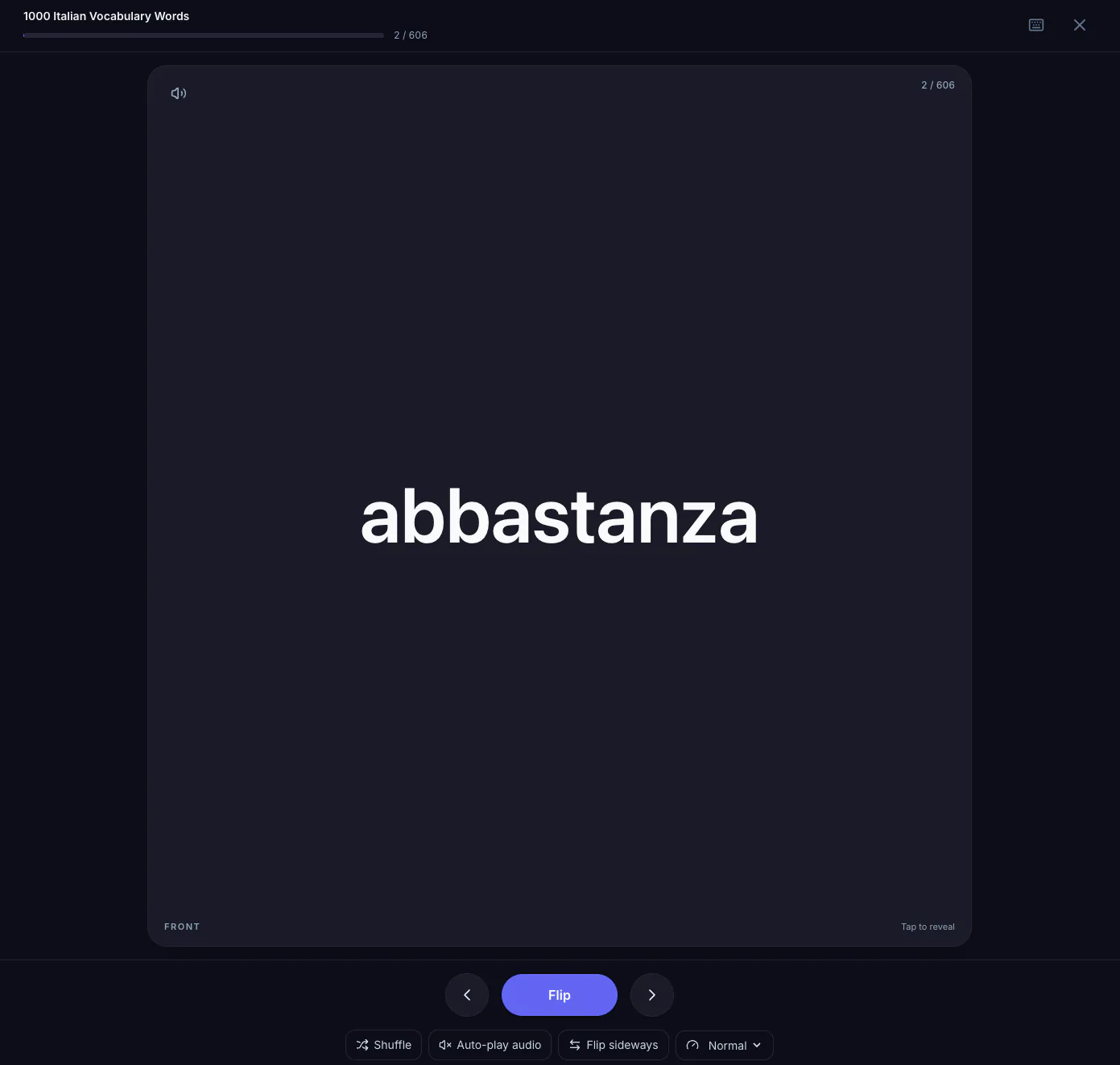
Spaced repetition with a queue that shows what each answer costs you, instead of a black box.
Checked against the source Plus & Family
A study card made from a passage can have its answer checked back against that passage and shown as supported, contradicted or not found, with the deciding quote.
Rescue for study cards that won't stick Plus & Family
Cards made from a passage that you keep missing can be rewritten from that passage and added fresh, while the card you had is kept.
Spoiler control
In the web and desktop apps, the review queue can hold back study cards from parts of a book you haven't reached yet.
Three ways to practice, included on Free
Focus turns big cards over one at a time, Learn takes each card from multiple choice to typed recall, and Match is a timed pairing game — included on Free, beside the spaced-repetition reviews, in the desktop and web apps and on iPhone and iPad. Multiple-choice quizzes are drafted from a chapter, so they are on Plus and Family.
Bring your decks with you Plus & Family
Import from spreadsheets and the text exports other flashcard apps produce. Exporting — as CSV or an Anki deck — is included on Free.
Summaries, quizzes and cards from a chapter Plus & Family
Open a chapter — from the table of contents or by reading to it — and Biblos drafts a summary, a quiz or a deck of study cards from it, ready to review.
Kitchen
The cookbooks you own, finally searchable.
A recipe app sits inside Biblos, fed by the cookbooks already on your shelf.
Recipes out of your cookbooks Plus & Family
Scan a cookbook in your library, or photograph a recipe card or a page, and the recipes become real, editable cards — no retyping.
Save from a link, a site or the share sheet
Paste a link — on Free too. In the desktop app, Browse & Clip opens recipe sites in a Biblos window with a Save button; in a browser, Save to Biblos — a bookmarklet from your library's web app — saves the page you're on. On iPhone and iPad, Share → Save to Biblos sends the page you have open to your household hub, and running a hub takes Family.
Search the way you cook
Meals Discovery searches your recipes and, on Plus and Family, the web — on Free, the recipes Biblos members have imported — by what's in the fridge or by a dish's name. Filter by protein or by how long you have, and hide recipes whose ingredients name something you avoid — a match on ingredient names, not an allergy check. On Plus and Family, AI adds cuisine and diet tags you can filter by.
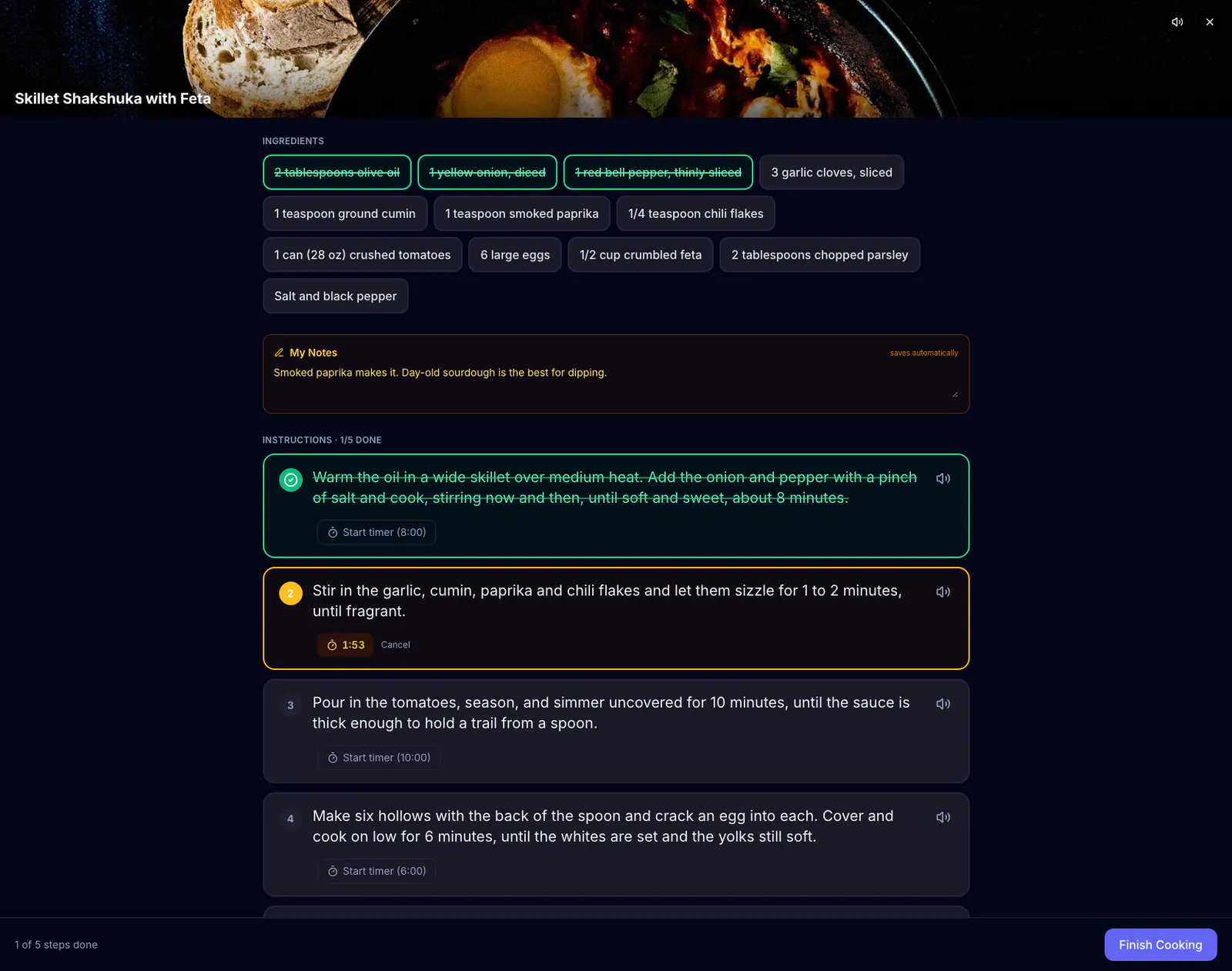
Cook Mode
Big steps, per-step timers, and a screen that stays awake with your hands covered in flour.
Print it, or email it
Print a recipe on white paper, with its photo if you like, whatever theme the app is in. Email it from your own mail app — the ingredients, the steps and where the recipe came from.
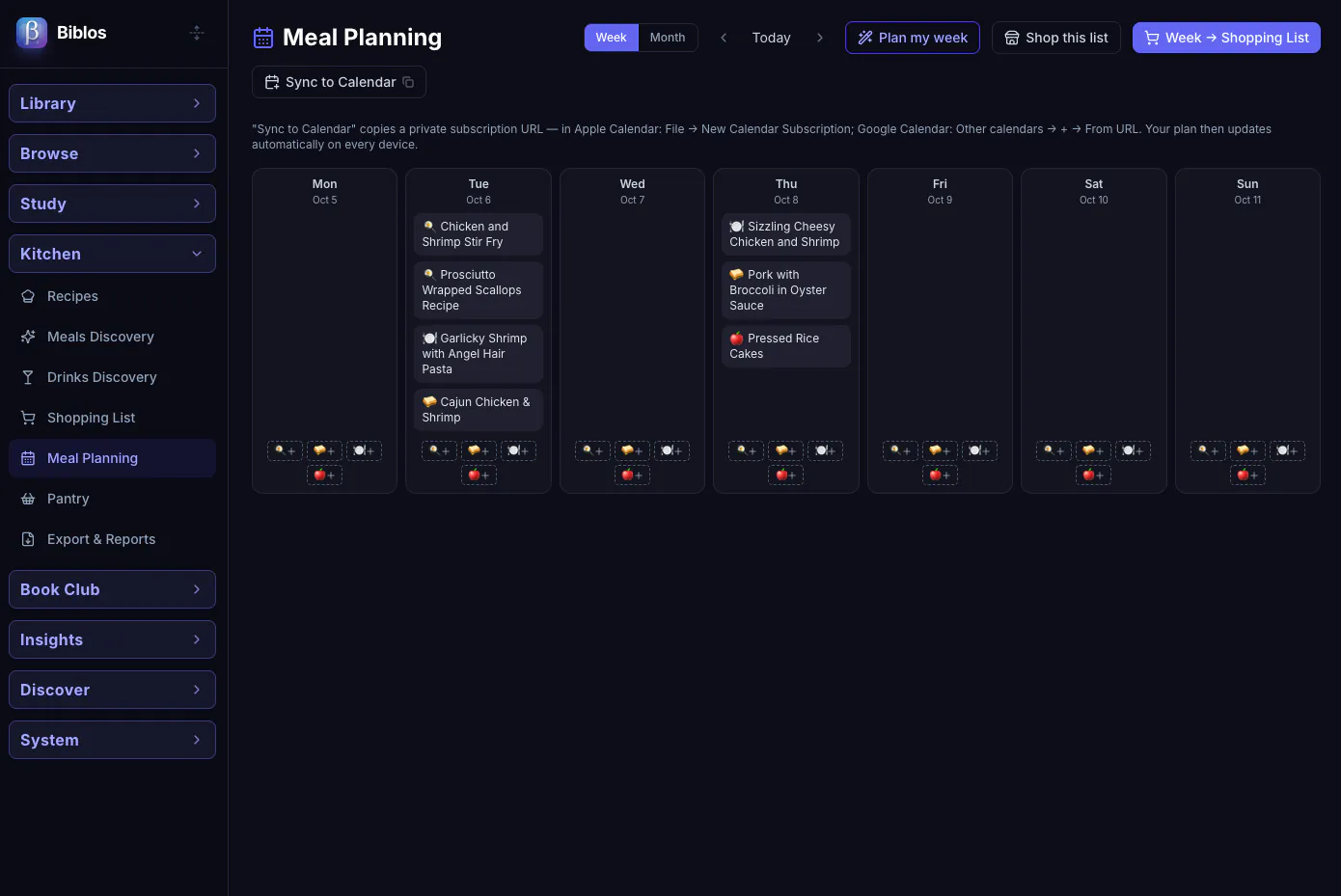
Plan the week, shop once Plus & Family
Drag meals onto a calendar you can subscribe to, and turn the week into one shopping list, each item noting the recipe it is for (grouped by aisle on Plus and Family, when an AI provider is set up). Free plans today's meals — type a meal in or pick one of your recipes — and the shopping list itself is included on Free, with room for items of your own; on iPhone and iPad, ask Siri to add one.
A pantry without the bookkeeping
Check items off the shopping list as you buy them, then one tap — Import bought items — moves them into the pantry, where each shows whether it is full, half, low or out. Included on Free.
Book club
Your book club, your folder.
A book club that runs out of a shared folder — on your library at home, or in a folder your members already sync to their computers. No club account, no social network, no feed. Hosting a club is part of Plus and Family; joining one is free — in the desktop and web apps, and on iPhone and iPad through a Family household's library.
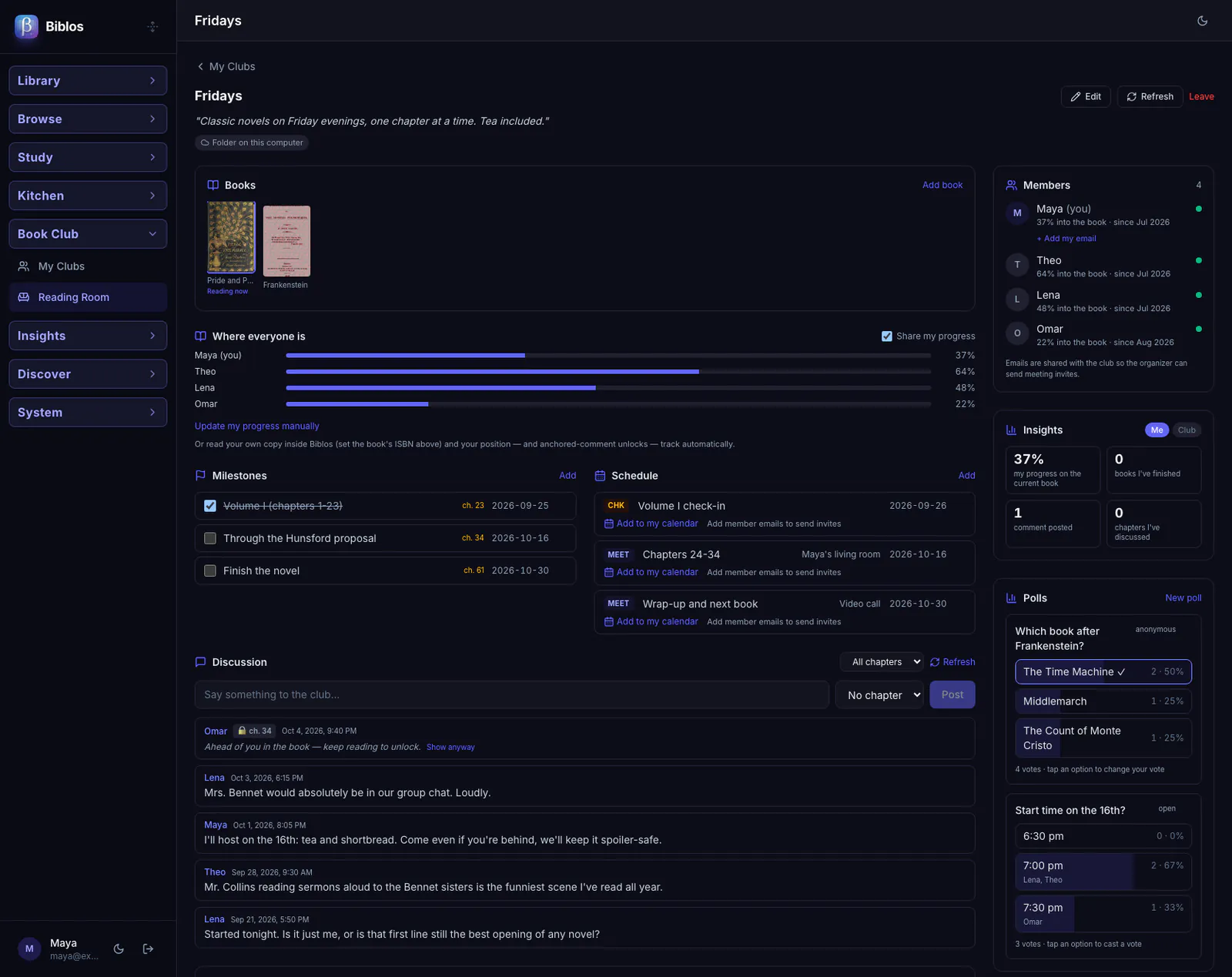
A reading room per club
The reading list, the schedule, members' progress and the club's history in one place.
Spoiler-gated discussion
Comments are pinned to a place in the book and stay locked until each reader gets there.
Polls and meeting invites
Vote on the next book. Each member adds the meeting to their own calendar in one tap, and the organizer can send the club an invitation from their calendar app.
Library
Your DRM-free books, on shelves that make sense.
Shelves, not a file list
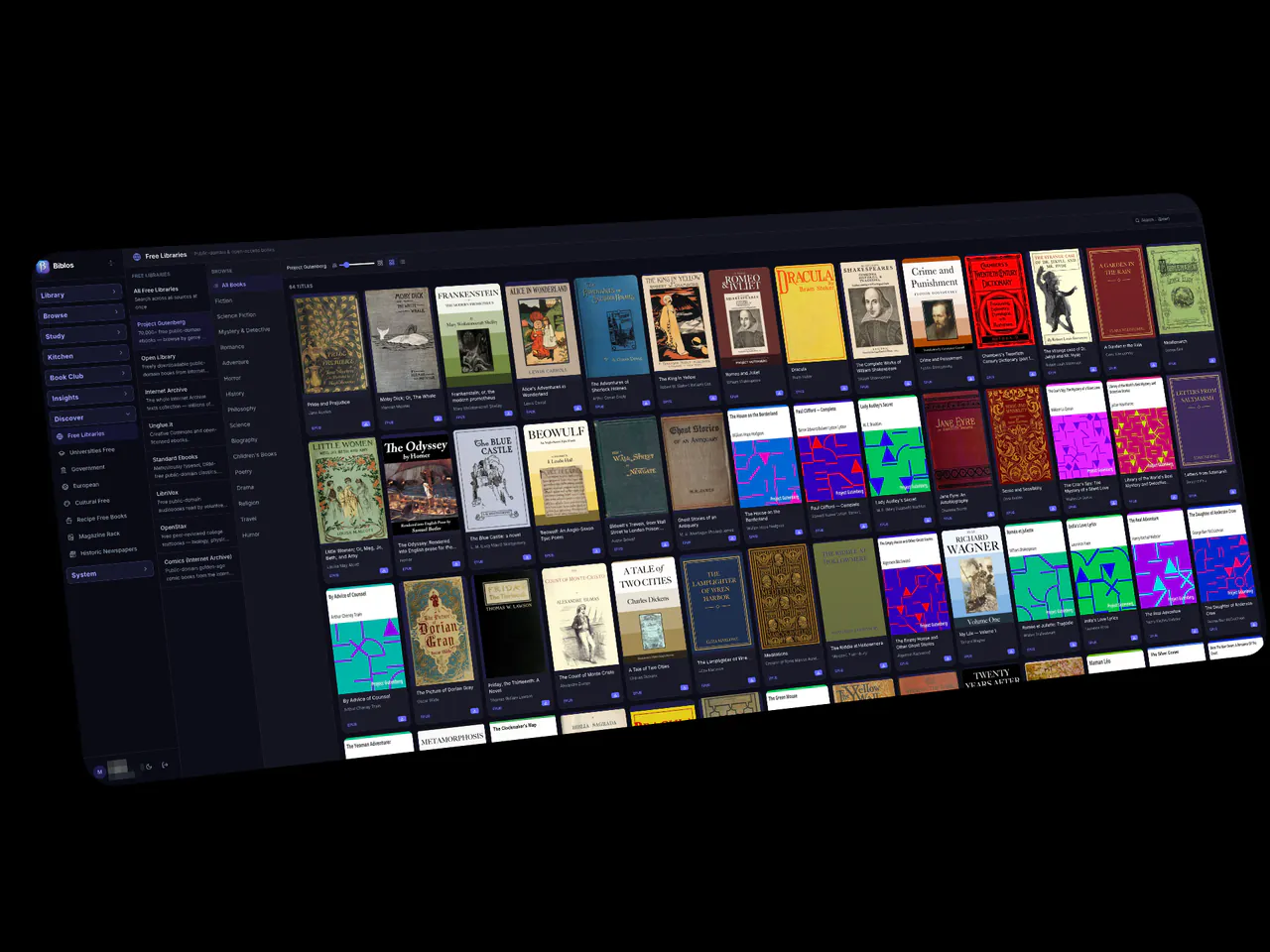
Several views including cover shelves and coverflow, with collections, series, tags and filters, and one cover for a book you own in two formats.
Dozens of free catalogs
Public-domain classics, university presses, museums, magazines, free audiobooks and more, browsable in the app and one tap to add.
Communities
City newsletters and community, neighborhood and regional magazines, listed by state, county and city. Where a publisher posts its issues as PDFs, add one to your library from the publisher's own site — it lands on its own Local Press shelf, apart from Magazines; the others open on the publisher's page. In the desktop and web apps and on iPhone and iPad.
Two centuries of newspapers
Millions of searchable newspaper pages from 1756 to 1963, imported as one readable issue rather than loose scans — through a hub or the desktop app, and on iPhone and iPad on their own, where the import keeps going after you leave the app, with its progress on the Lock Screen.
Your printed books too
Add a paper book by its ISBN to your home collection; when a digital copy in your library has the same ISBN, the two are linked. An iPhone or iPad connected to your hub scans the barcode with its camera; on a computer, type the ISBN. On an iPhone that supports Visual Intelligence (iOS 26), point the camera at a book's cover — or a dish — and Biblos finds the book or a recipe in your library.
Track what you read on paper
Each person keeps their own reading of a paper book — want to read, reading, read, paused or did not finish — with the page, the dates and their own rating; the book shows the household's average. Set a yearly goal, and paper and digital books count together. Lend a book to a friend by name with a due date, check in a shop whether you already own a book, bring your reading history from a Goodreads or StoryGraph export, and keep quotes that can become flashcards. Paper books have no plan limit, Free included. Plus and Family add a reading timer, a recap card to share and quotes read off a photo of the page. A book you let go that someone has read stays as Formerly Owned, with everyone's reading of it. In the desktop and web apps; on iPhone and iPad, your shelf with each person's rating and the household's average, and Formerly Owned books.
Streaks and reading stats
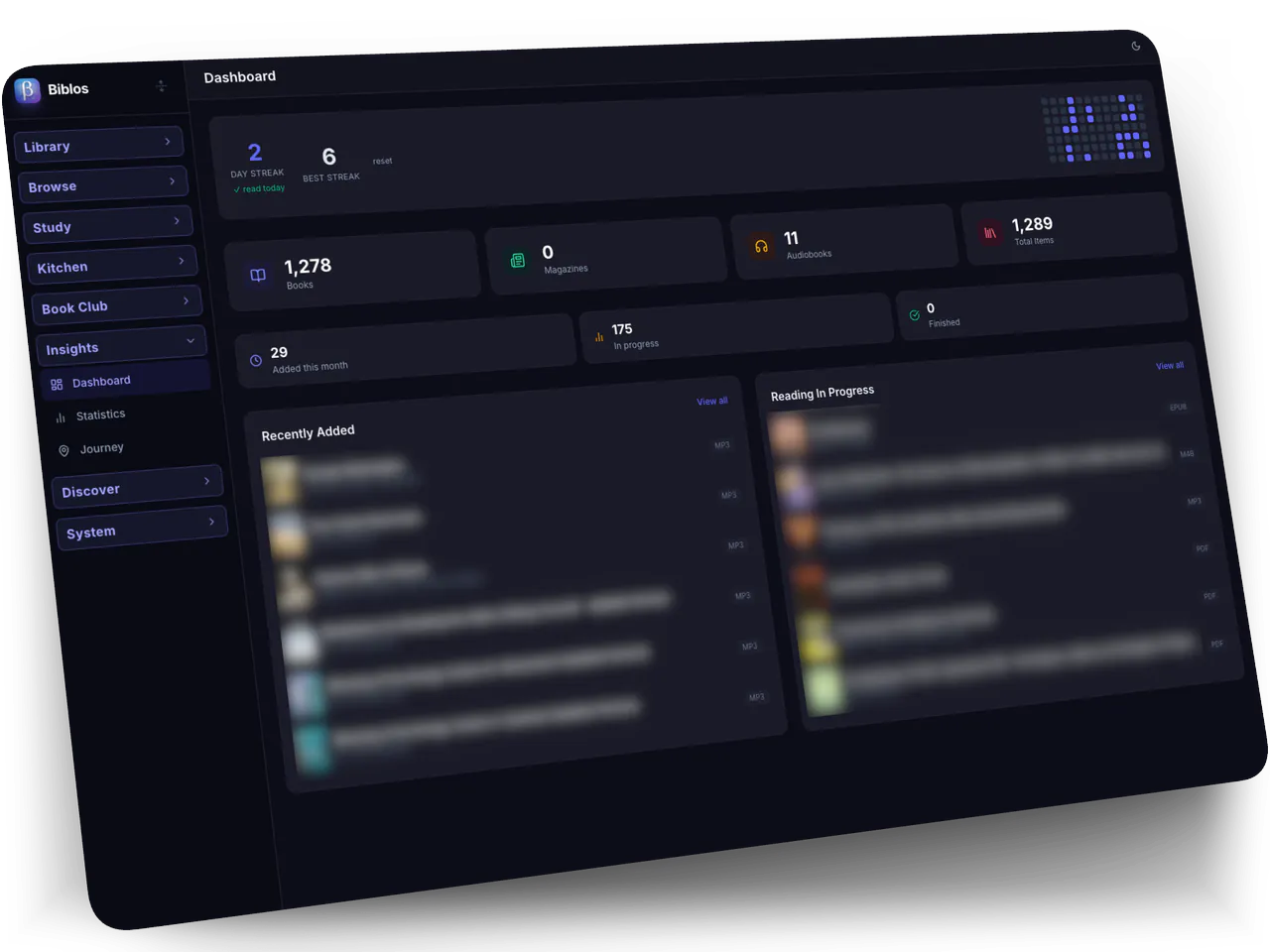
An activity grid, reading streaks and a timeline of what you've finished, paper books included — the part that keeps the habit going.
Serve your library to other apps Family
Run your own hub and it publishes a standard catalog, so other reader apps on your network can open your books too.
Household & privacy
A family plan that behaves like one.
Profiles, not shared accounts
On Family, up to 5 members, each with their own shelves, progress, highlights and streaks — and 5 devices each.
A shared folder keeps your computers in step
Point the household's computers at a folder you already sync, and reading progress, bookmarks, highlights and recipes merge between them, with no server in the middle. (iPhone and iPad are not fully part of it.)
AI that runs where you choose Plus & Family
On iPhone and iPad, the recipe and receipt scans use Apple's on-device AI where the device supports it. The desktop app can run Biblos's included model on your computer, for text — a one-time download you start yourself. Reading a photo — a recipe, a quote on a page, the fridge or a receipt — on a computer or a NAS needs a cloud AI provider you choose, with your own key; and the NAS package has no built-in model, so its AI uses your key or an Ollama server you run. Biblos does not charge per use.
No Biblos Account needed to start
The free version runs without a Biblos Account — your library stays yours. On a computer, the first time it opens you can continue with Apple, Google or Microsoft, or create a name and password for your own library instead; an iPhone or iPad can run on its own with one tap and nothing to type. No ads on any plan.
Your files stay in your folders
Remove a book from Biblos and it leaves the catalog, not your disk; a file is renamed only when an admin of your library asks. Exports are included on Free.
Run it on your own box Family
Run the hub on a NAS at home or on a computer you leave on — the household reads from your own hardware, over your own network, and the Biblos apps on your other devices connect to it.